Screen Reader for Blind People: Navigation Tips
Jason Holloway · on 24 July 2026 · 11 min read · Last reviewed 24 July 2026
A screen reader for blind people is an assistive speech software that converts digital text into spoken words, allowing users to navigate computers, smartphones, and other devices through audio feedback.
LABEL: Think of it as a virtual guide, reading out everything on your screen so you can interact with technology independently.
- Screen readers use synthetic speech and braille displays to provide access to on-screen content.
- Popular screen readers include JAWS, NVDA, VoiceOver, and TalkBack.
- These tools support web browsing, document reading, email, and software use.
- According to the World Health Organization, over 285 million people worldwide are visually impaired, highlighting the need for such technologies.
How do screen readers for blind people work?
Screen readers interpret what is displayed on your screen and relay that information to you via speech or braille. They use text-to-speech (TTS) synthesis to vocalize on-screen elements, including icons, buttons, and menus.
The software scans the screen and reads the text aloud, describing images, links, and other interface elements. Users can navigate using keyboard commands or touch gestures, depending on the device. For example, JAWS uses a combination of keystrokes to read, navigate, and interact with content, while VoiceOver on iOS devices relies on touch and swipe gestures.
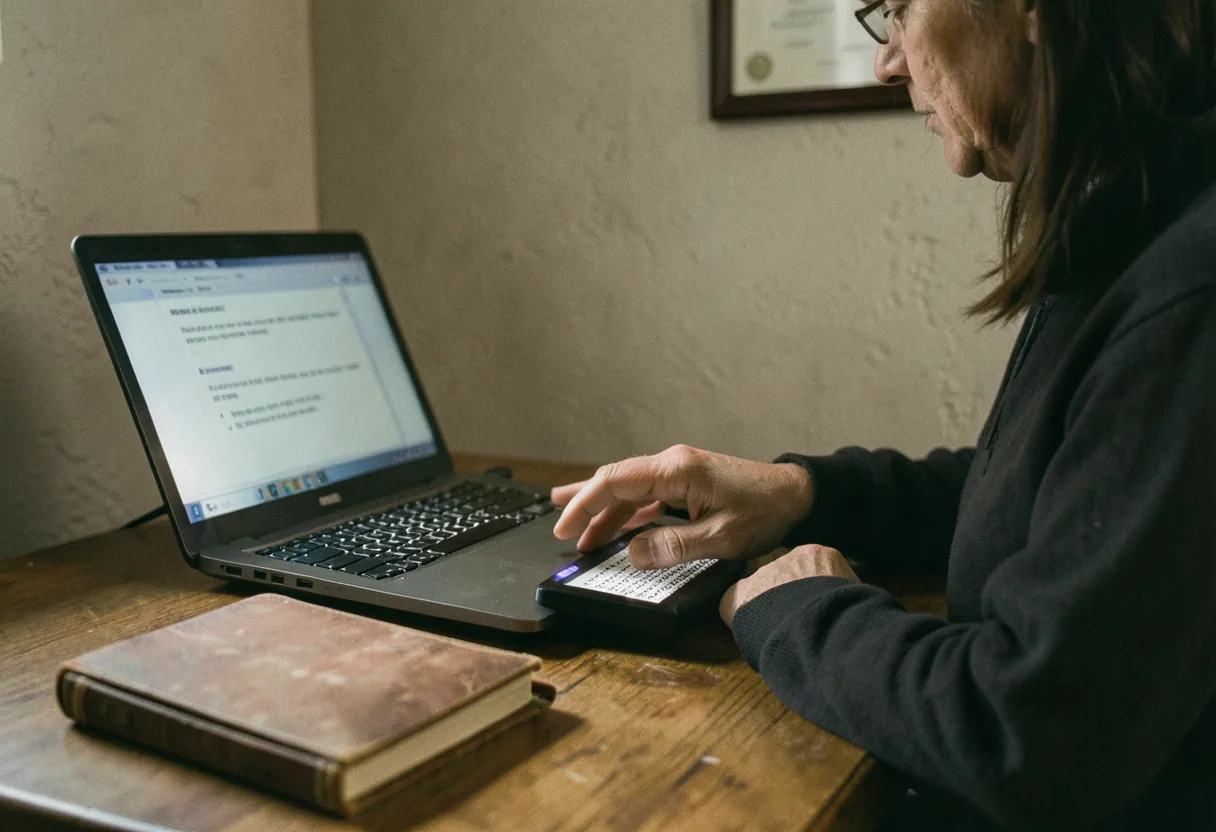
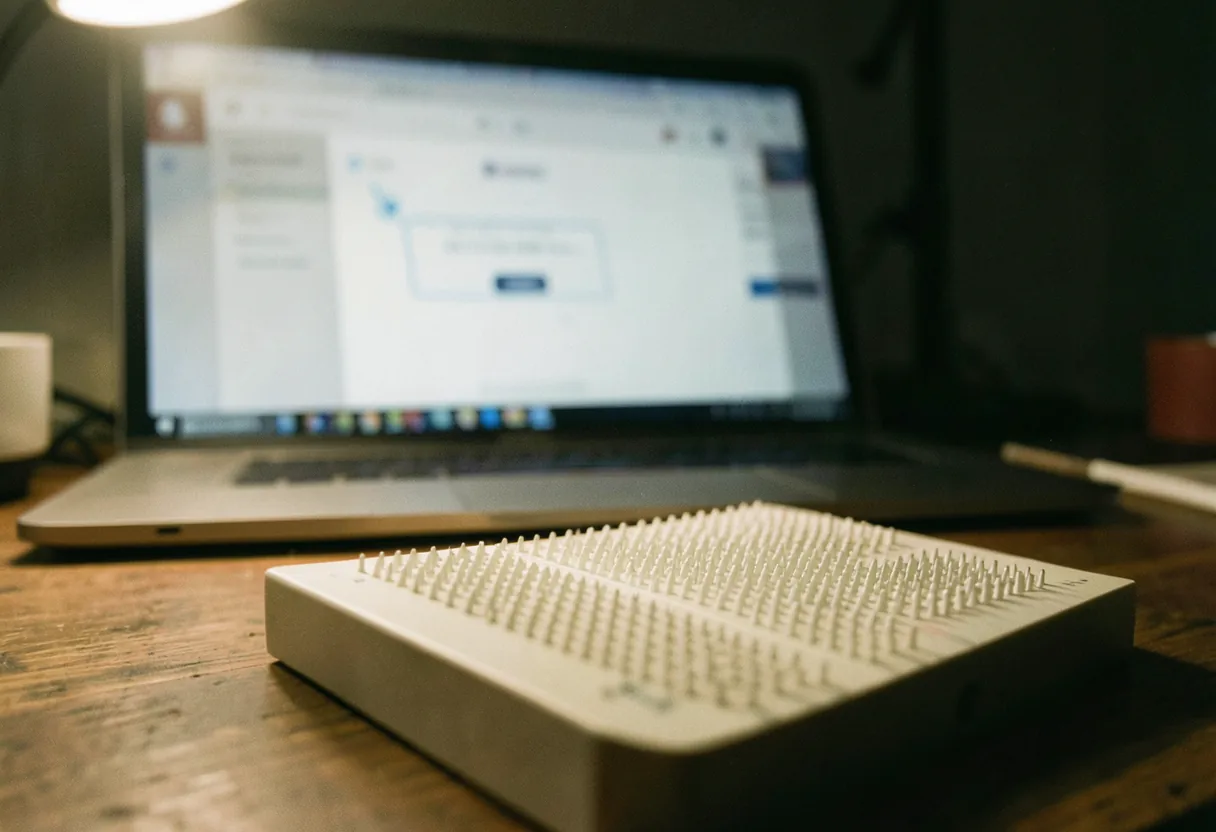
Screen readers also support customization, allowing users to adjust the speech rate, pitch, and volume to suit their preferences. Some advanced screen readers, like NVDA, offer braille display support, providing tactile feedback for those who are deafblind.
What are the most popular screen readers for blind people?
The most widely used screen readers include JAWS, NVDA, VoiceOver, and TalkBack. Each has unique features tailored to different devices and user needs.
| Screen Reader | Platform | Key Features |
|---|---|---|
| JAWS | Windows | Extensive customization, braille support, and compatibility with a wide range of applications |
| NVDA | Windows | Free and open-source, lightweight, and supports braille displays |
| VoiceOver | macOS, iOS | Built-in, gesture-based navigation, and supports multiple languages |
| TalkBack | Android | Gesture-based navigation, customizable verbosity, and supports braille displays |
How can I get a screen reader for blind people?
You can obtain screen readers through various means, including free downloads, purchases, or through organizations that provide assistive technology.
For example, NVDA is a free, open-source screen reader available for download on Windows. JAWS, while paid, offers a free trial and discounts for students and non-profits. VoiceOver comes pre-installed on Apple devices, and TalkBack is built into Android devices. Organizations like the American Foundation for the Blind provide resources and support for obtaining assistive technology.
To install a screen reader, download the software from the official website and follow the installation instructions. Most screen readers come with built-in tutorials and support to help users get started. For instance, JAWS offers a comprehensive setup guide and training resources to ensure users can navigate the software effectively.
How do I navigate with a screen reader for blind people?
Using a screen reader requires learning particular commands and gestures to operate your device. Here are some basic steps to help you begin:
- Enable the screen reader: Turn on the screen reader in your device's accessibility settings.
- Learn basic commands: Learn key commands for accessing and engaging with content.
- Practice navigation: Use the screen reader to navigate through different applications and webpages.
- Customize settings: Adjust the speech rate, pitch, and volume to suit your preferences.
- Explore advanced features: Discover additional features like braille support, custom scripts, and app-specific settings.
In JAWS, pressing the Insert key with a letter lets you do things like reading the current line or moving to the next heading. VoiceOver on macOS uses swipe gestures to move around and read content. Practice and patience help you get good with a screen reader.
What are the benefits of using a screen reader for blind people?
Aiding blind and visually impaired users, screen readers offer numerous benefits, enhancing independence and accessibility. They enable users to access digital content, navigate the web, and use software applications independently.
Simply put: In plain terms, screen readers open up a world of digital information and communication for those who cannot see the screen.
According to the World Health Organization, screen readers significantly improve the quality of life for visually impaired individuals by providing access to education, employment, and social interactions. They also support multitasking, allowing users to listen to audio while performing other tasks. Additionally, screen readers can be integrated with other assistive technologies, such as braille displays and speech recognition software, to create a comprehensive accessibility solution.
For example, screen readers such as JAWS and NVDA work with many applications, like word processors, web browsers, and email clients. This compatibility allows users to complete daily tasks efficiently and effectively. Additionally, screen readers often include features like text prediction, spell checking, and customizable voices to improve usability.
What are some alternatives to screen readers for blind people?
While screen readers are essential tools for blind and visually impaired users, there are alternative technologies that can complement or supplement their functionality.
Braille displays, for example, provide tactile feedback by translating on-screen text into braille characters. These devices are particularly useful for users who are deafblind or prefer tactile input. Screen magnifiers, on the other hand, enlarge on-screen content, making it easier for low-vision users to see. Speech recognition software allows users to control their devices using voice commands, providing an alternative to keyboard navigation.
For instance, the BrailleNote Touch by HumanWare is a popular braille display that offers both refreshable braille and speech output. Screen magnifiers like ZoomText by Ai Squared provide customizable magnification and color enhancement options. Speech recognition software like Dragon NaturallySpeaking enables hands-free control of computers and mobile devices. These alternatives can be used in conjunction with screen readers to create a more comprehensive accessibility solution.
How can I learn more about screen readers for blind people?
To learn more about screen readers, explore online resources, attend workshops, and join communities of users and experts. Many organizations and websites offer tutorials, guides, and support forums to help you get started.
For example, the American Foundation for the Blind provides extensive resources and training programs on assistive technology. Websites like the National Federation of the Blind offer guides and tutorials on using screen readers effectively. Additionally, online forums and social media groups provide a platform for users to share tips, ask questions, and stay updated on the latest developments in screen reader technology.
Attending workshops and webinars can also enhance your understanding and skills. Many organizations host events focused on assistive technology, providing hands-on training and expert guidance. For instance, the Magnifier Computer Screen: Digital Tools Review offers insights into various digital accessibility tools, including screen readers. Engaging with these resources will help you make the most of screen reader technology and improve your digital accessibility.
What are some advanced features of screen readers for blind people?
Advanced screen readers offer a range of sophisticated features designed to enhance usability and accessibility for blind and visually impaired users. These features go beyond basic text-to-speech functionality and provide a more comprehensive and customizable experience.
Plainly stated: The bottom line is that advanced screen readers offer powerful tools that cater to a variety of user needs and preferences.
A key advanced feature is the ability to connect with braille displays, letting users read and access content through touch. For instance, JAWS supports many braille displays, allowing users to move easily between speech and braille output. This connection is especially helpful for users who are deafblind or prefer touch input.
Another advanced feature is the support for multiple languages and dialects. Screen readers like VoiceOver and TalkBack offer extensive language support, allowing users to switch between different languages and dialects with ease. This feature is crucial for multilingual users who need to access content in various languages. For instance, VoiceOver on macOS supports over 30 languages, making it a versatile tool for international users.
Custom scripts and automation are also advanced features offered by screen readers. These scripts allow users to automate repetitive tasks and customize the behavior of the screen reader to suit their specific needs. For example, NVDA supports the creation of custom scripts using Python, enabling users to tailor the screen reader's functionality to their workflow. This level of customization can significantly enhance productivity and efficiency.
Additionally, advanced screen readers offer enhanced web browsing capabilities. Features like form filling, link navigation, and table reading make it easier for users to interact with web content. For instance, JAWS provides advanced web browsing features that allow users to navigate complex web pages with ease. These features include the ability to jump between headings, links, and form fields, as well as the option to customize the reading order of web content.
Finally, advanced screen readers often come with comprehensive training and support resources. These resources include tutorials, user guides, and access to a community of users and experts. For example, the Screen Reader Training: Online Courses offers a range of courses and resources to help users get the most out of their screen reader. Engaging with these resources can enhance your understanding and skills, allowing you to make the most of advanced screen reader features.
How do screen readers for blind people handle images and graphics?
Alt text describes images and graphics for screen readers, offering context and information to visually impaired users. Alt text is a brief description that can be read aloud by the screen reader, allowing users to understand the content and purpose of the image.
To break it down: In plain terms, alt text acts as a textual substitute for visual elements, ensuring that blind users can access and interpret graphical content.
To make images accessible, developers and content creators should include descriptive alt text for all images. For example, instead of using generic alt text like "image1.jpg," a descriptive alt text like "a smiling woman holding a coffee cup" provides meaningful information. This practice is particularly important for informative images, such as charts, graphs, and diagrams, where the visual content conveys critical data.
Image recognition features in screen readers provide additional context for complex graphics. For instance, JAWS and NVDA can integrate with image recognition software to describe the content of images more accurately. This feature is beneficial for users who rely on screen readers to navigate and understand complex visual information.
Additionally, screen readers offer features like object navigation, allowing users to jump between different types of on-screen elements, including images, buttons, and links. This feature enables users to quickly locate and interact with specific elements on the screen. For example, in VoiceOver, users can navigate through images by using specific gestures or keyboard commands, making it easier to access and interpret graphical content.
Charts and graphs, when accessed with screen readers, offer detailed descriptions of the data and its presentation. This feature is particularly useful for users who need to access and interpret complex data visualizations. For instance, TalkBack on Android devices offers features that allow users to explore and understand the structure and content of charts and graphs.
Finally, screen readers support the use of long descriptions for images that require more detailed explanations. Long descriptions can be linked to images and provide in-depth information about the visual content. This feature is particularly useful for users who need to understand complex or detailed images, such as diagrams, maps, and infographics. For example, the Image Description Techniques: Best Practices offers guidelines and best practices for creating effective and accessible image descriptions.
| Feature | Description | Supported Screen Readers |
|---|---|---|
| Alt Text | Provides a textual description of images and graphics | JAWS, NVDA, VoiceOver, TalkBack |
| Image Recognition | Uses software to describe the content of images more accurately | JAWS, NVDA |
| Object Navigation | Allows users to jump between different types of on-screen elements | VoiceOver, TalkBack |
| Data Visualization | Provides detailed descriptions of charts, graphs, and other data visualizations | TalkBack |
| Long Descriptions | Offers in-depth explanations for complex or detailed images | JAWS, NVDA, VoiceOver |
In my experience, mastering the use of alt text and other image description techniques can significantly enhance the accessibility and usability of screen readers for blind users. By providing clear and descriptive information about images and graphics, users can better understand and interact with digital content, ensuring a more inclusive and accessible experience.
Frequently asked questions
How do screen readers interpret web page structures?
Screen readers rely on HTML tags to understand page structures. Headings (h1-h6) create an outline, while lists and landmarks (like navigation or main content areas) help users jump between sections. Proper use of ARIA labels and roles further clarifies interactive elements, ensuring blind users can navigate efficiently.
What shortcuts improve navigation speed for blind users?
Keyboard shortcuts vary by screen reader, but common ones include 'H' to jump to the next heading in JAWS or NVDA, 'F' to find a form field, and 'L' to locate a list. Learning these shortcuts significantly speeds up navigation, reducing the need to scan entire pages linearly.
Can screen readers handle complex tables or charts?
Yes, but they require proper markup. Tables should use thead, tbody, and th tags for headers. For charts, screen readers interpret alternative text or data tables that describe the visual information. Without these, blind users may miss critical data or relationships.
How do screen readers announce live content updates?
Live regions, marked with ARIA attributes like 'aria-live', alert users to updates without requiring them to navigate to the content. For example, a chat application might use this to announce new messages. Screen readers periodically check these regions and announce changes automatically.
See also: Best Screen Readers for Accessibility.